Five minutes to log in. 23 screens and an hour’s wait for one energy report.
 ⚡ Energy Report (HER1)
Connecting to ERS. Please wait…
This can take about 5 minutes
Generating report. Please wait…
This can take about 5 minutes
I designed LENS and built its design system.
56 tokens · 16 componentsColor tokens
Brand · text · area tones
Type scale · Inter
Hey, David
Customer Accounts
CMF SAMPLE-R1A · 907.500
LAUNCH REPORTS
Components
Run Reports Mohawk⌄ AllSelected Only Total Usage44,623 kWhOne system behind every lookup.
 LENS
LENS Energy✓
 Operation
 App Admin
 System Admin
Motion graphic · 23-second loop · ERS screens are real, sign-on and wait dialogs illustrative
Legacy modernization · Electric utility · Design system
Replacing ERS with LENS: a design system for reading energy billing down to the 15-minute interval
Customer service specialists and administrators across National Grid used ERS, a legacy application, to look up billing data, print it, and see how electricity was billed in 15-minute intervals. Getting there meant about a 5-minute wait just to log in, then 23 screens and about an hour waiting for the report job to finish, for no more than 7 customers at a time. ERS is being replaced by LENS, the Load and Energy Navigation System. LENS needed a new, modern design, so I started from scratch: I designed the product and built the design system it runs on, so people find the data they need and export it in far less time. The first MVP releases in January.
01 — The problem
23 screens, an hour of waiting, and only 7 customers at a time
ERS was the place to answer billing questions. A specialist on the phone with a customer, an administrator checking an account, a team in another department pulling a report: they all searched ERS for a customer, printed the billing data, and read how the electricity was billed in 15-minute intervals.
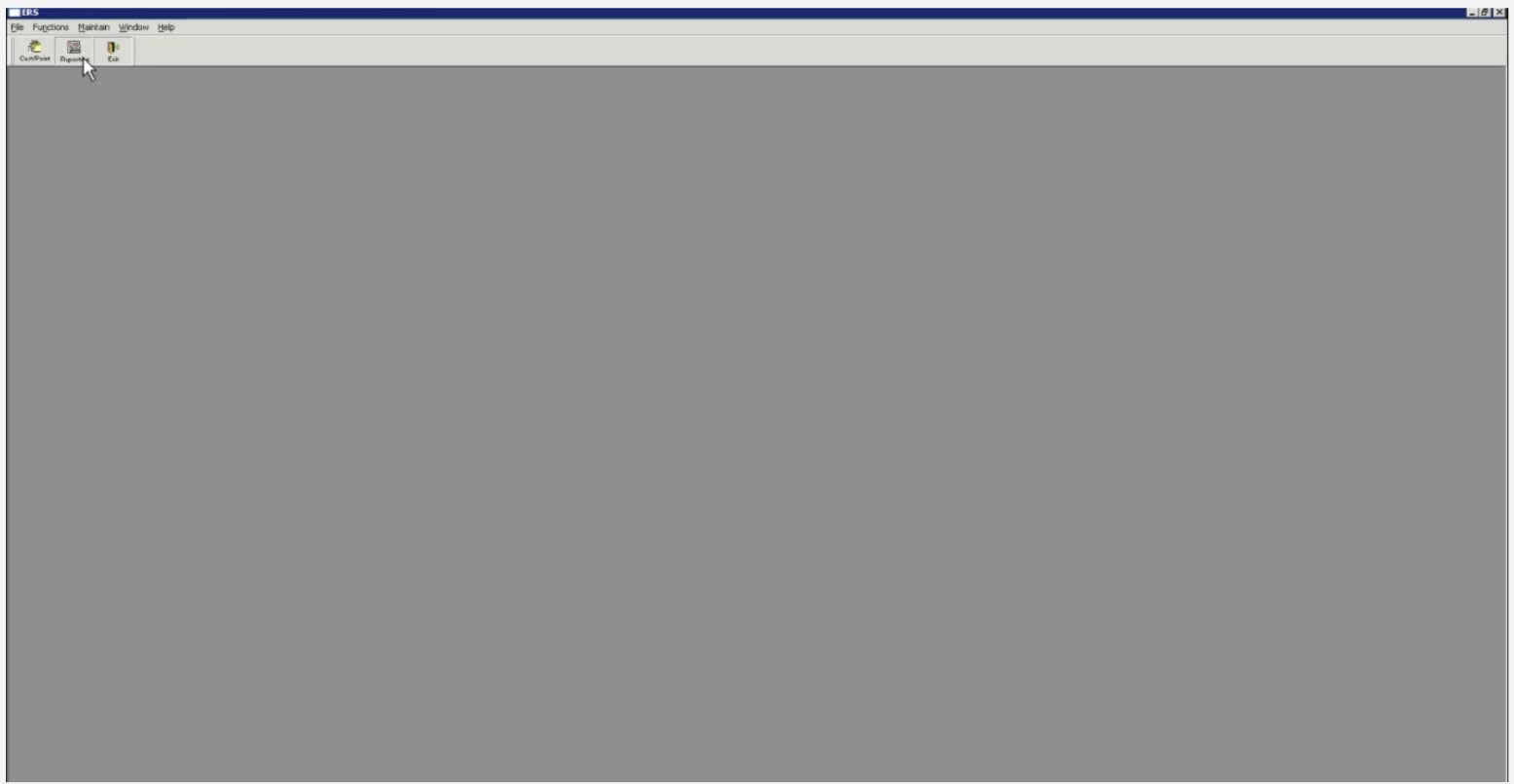
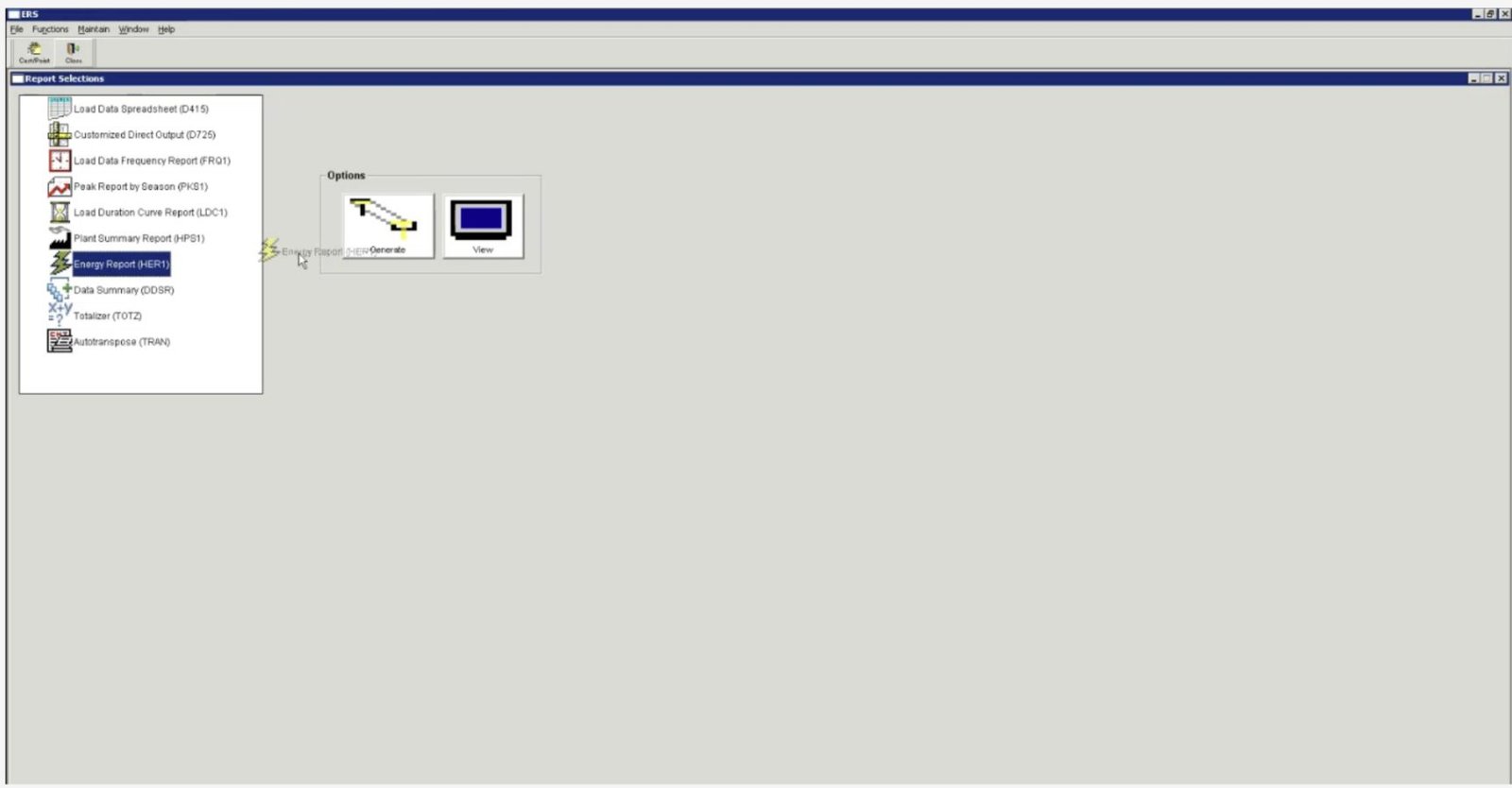
Every lookup started with about five minutes of waiting just to log in. From there, users dragged Energy Report (HER1) from a list of report codes onto an Options panel and waited about 5 more minutes for it to generate. It took 17 screens to see the data, then the report criteria had to be set again, a job submitted, and about an hour of waiting, on average, before the exported report was ready: 23 screens in all.
Each run covered at most 7 customers. A specialist with 35 customers had to repeat the whole journey 5 times, one batch after another.
01 · After a 5-minute sign-on
02 · Drag Energy Report onto Options, then wait
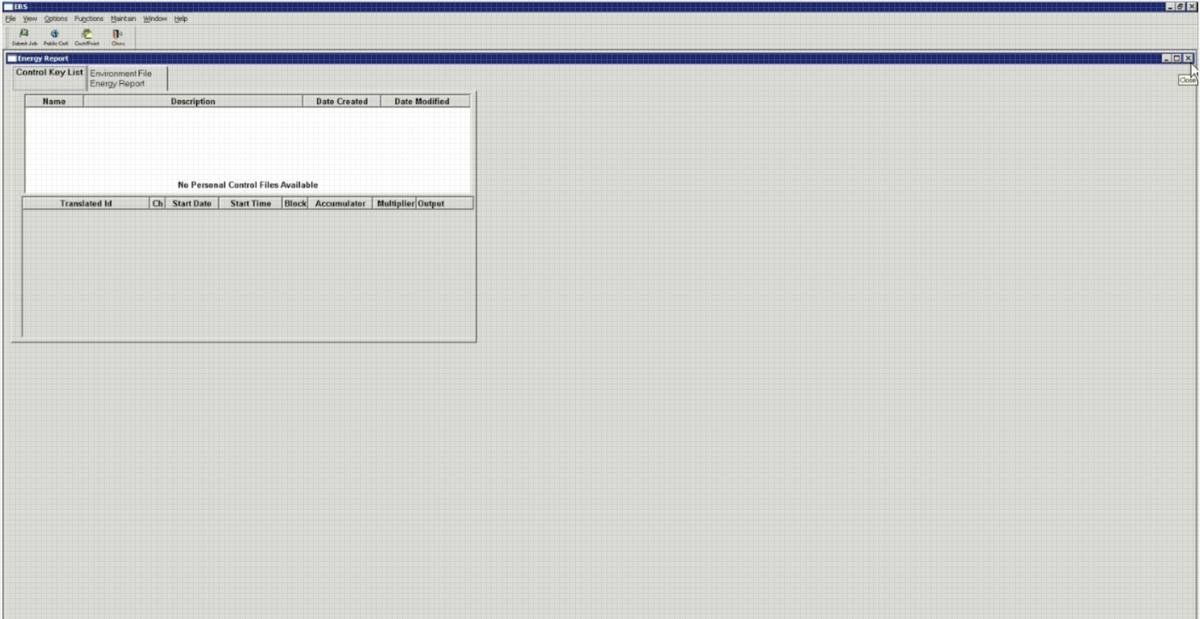
03 · Energy Report window, still empty
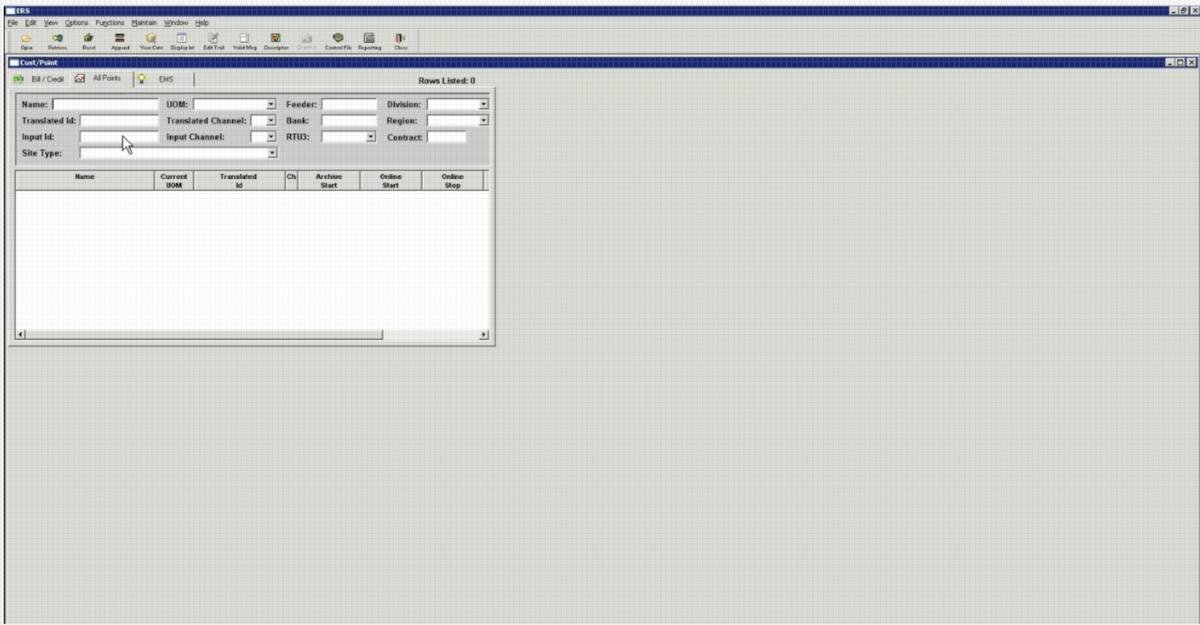
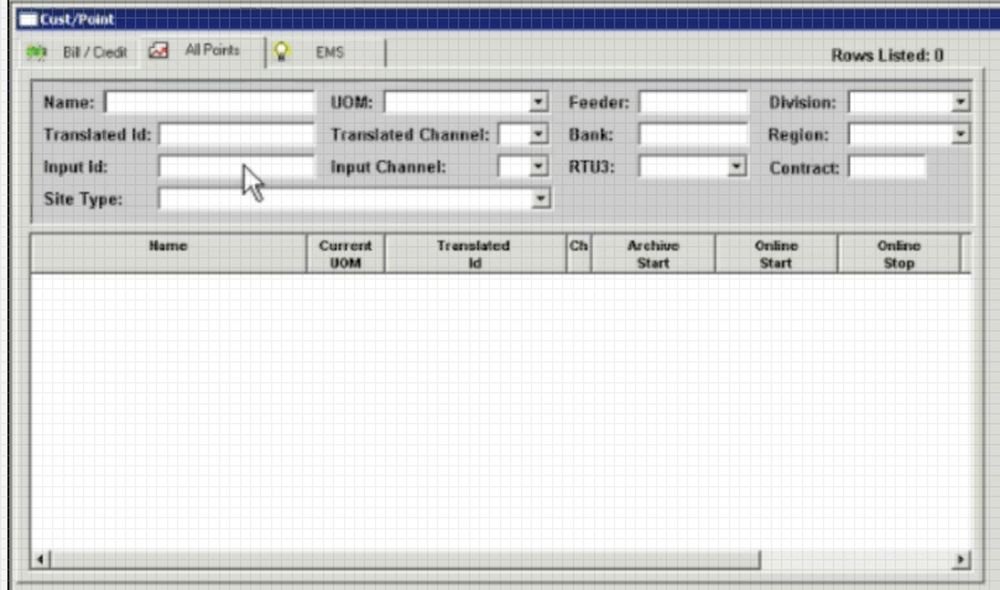
04 · Cust/Point, All Points tab: 13 search fields
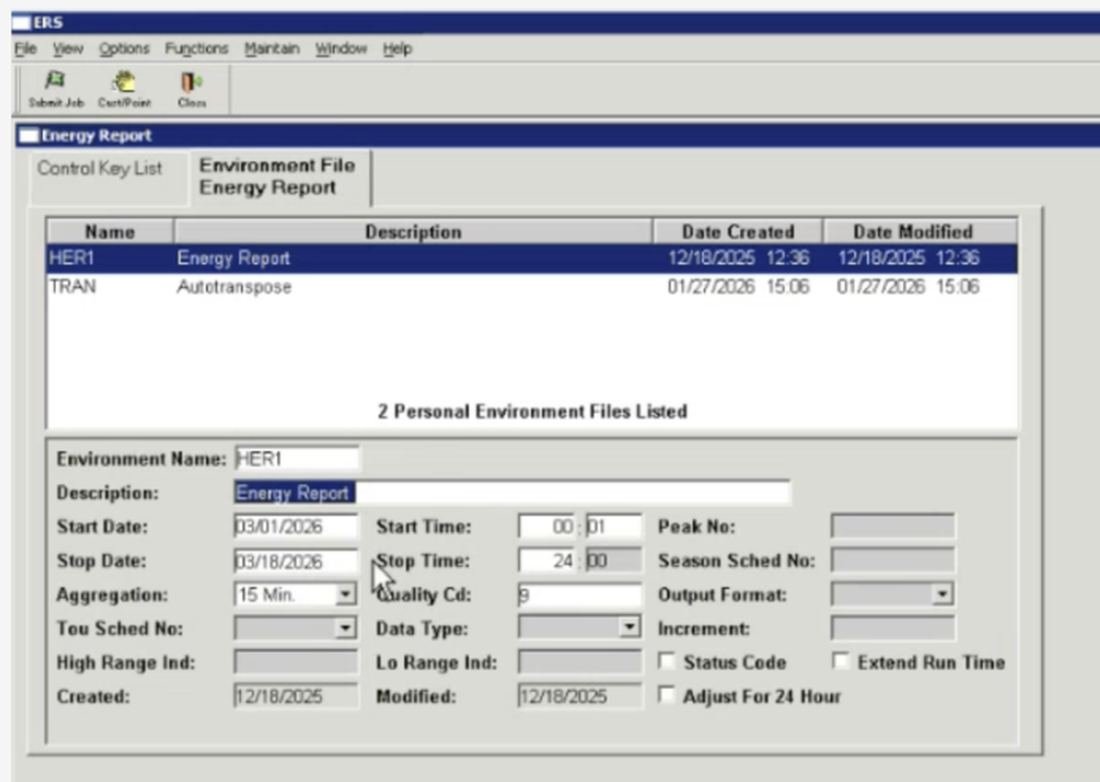
05 · To export, set the criteria again: about 20 fields
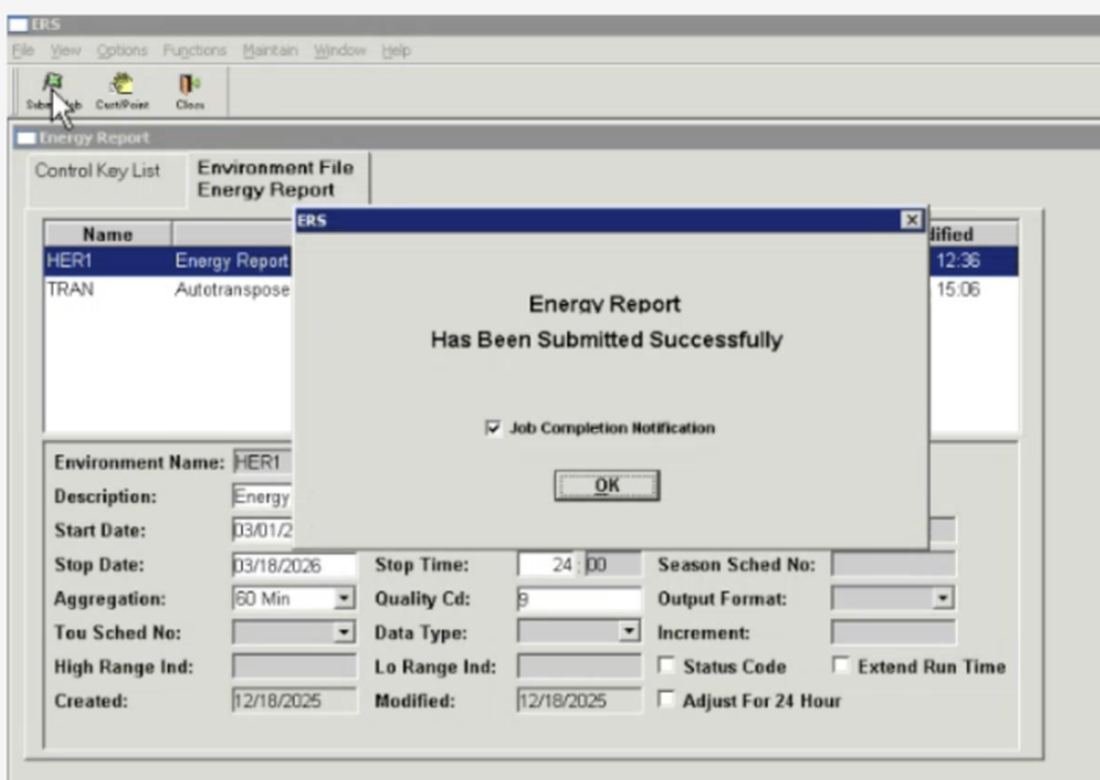
06 · Submit Job, then wait for a notification
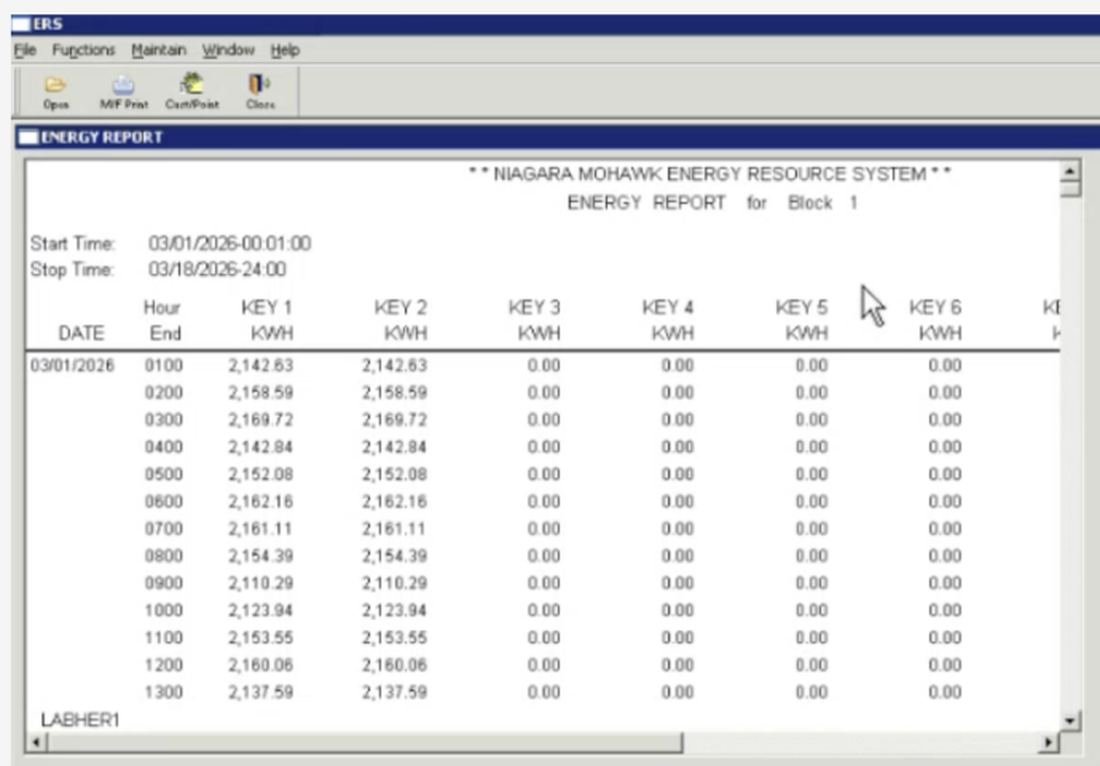
07 · About an hour later: the report, with a column per key and room for 7
LENS replaces ERS. The goal was to cut the time it takes to find the data and export it, and there was no existing design foundation to build on. Every screen, color and control had to be defined from the start.
02 — My role
Designing LENS from scratch, and the system underneath it
As the product designer, I worked closely with UX Research and a Business Analyst. I mapped the legacy journey, built the LENS design system, designed the flows for every report type, and presented the prototype to the different groups. UX Research grounded the work in who uses ERS and how; the Business Analyst shaped what each screen shows.
- 1
Mapped the ERS journey
Walked the legacy path screen by screen and captured each one: 23 screens, four waits and a 7-customer cap. I compared my screenshots with the UX Researcher's and used Claude to help break the journey down step by step.
- 2
Grounded it in real users
UX Research gave me context on who uses ERS, across departments and roles, and how they use it today.
- 3
Built the design system
Defined color, type, spacing, radius and sizing as tokens, then 16 components with usage guidelines. It now also powers GridMD and L-Tip.
- 4
Designed every report flow
Designed the flows for the many report types the different groups need, from Energy and Operation to App Admin and System Admin.
- 5
Decided what each screen shows, with the Business Analyst
The Business Analyst recommended which components users would look for on each screen and which data to display, so people understood what they were looking at during testing.
- 6
Presented the prototype to every group
Walked the different groups who will use LENS through the prototype, so each could see how its reports and data would work.
- 7
Tested with SMEs and users
Ran 9 sessions over 3 weeks, with 2 to 4 subject matter experts and users from other departments in each. Every user rated the design 9 out of 10, ahead of the January MVP.
03 — The users
Different departments, one shared question: how was this billed?
LENS serves customer service specialists and administrators from different sections, roles and departments. Some come in for a single customer; others pull a whole list of accounts. All of them need to find the customer fast, trust the numbers, and print or download what they found.
I tested the design with subject matter experts and users from other departments across 9 sessions over 3 weeks, with 2 to 4 people in each. Every user gave it 9 out of 10. The reason they held back the last point was telling: they wanted to use it on the job first.
- Clean UIUsers liked how clear and uncluttered it is next to ERS.
- Easy to find dataThe data they need is quick to reach.
- Everything in one placeSearch, filters, results and export on one screen.
04 — Finding the friction
Mapping every screen between logging in and the report
I mapped the ERS journey from login to a finished energy report. Four waits broke up 23 screens: about 5 minutes to sign on, about 5 minutes to generate, another while the data displayed, and about an hour for the report job. And that covered 7 customers at most. In LENS the same job takes Home and one report screen: find the customers, select all of them, run the report and export it without leaving the page.
ERS · 23 screens and four waits, for up to 7 customers
- 01Log in · wait about 5 minutes
- 02Main window · click Reporting
- 03Report Selections · drag Energy Report (HER1) onto Options
- 04Generate · wait about 5 minutes
- 05Energy Report window · Control Key List tab, empty
- 06Back to Report Selections · click CustPoint
- 07Cust/Point · open All Points tab (13 search fields)
- 08Type the billing account number into the Input Id field
- 09Results list · find the row with the data you need
- 10Click the customer row to select it
- 11Descriptor Maintenance · view customer info in an editable form of about 30 fields
- 12Back to Cust/Point · click View Cuts in the toolbar
- 13View Cuts · interval cuts for one channel at a time (Ch 01)
- 14Scroll the list of 32 cuts and select the billing period you need
- 15Click Display List in the toolbar
- 16Energy Data window · wait while the report generates for the selected cut
- 17Energy Data · the report, one channel and one cut at a time, laid out four intervals to an hour
- 19Environment File tab · set the report criteria again in a form of about 20 fields: dates, times, aggregation, output format
- 20Type the start and stop dates and times, then pick the aggregation (15, 30 or 60 min)
- 21Click Submit Job in the toolbar to run the report
- 22"Energy Report Has Been Submitted Successfully" · click OK, then wait about an hour, on average, for the job
- 23Energy Report output · at most 7 customers per report. 35 customers means repeating all 23 screens 5 times
LENS · 2 screens, every selected customer in one run
- 01HomeOpen Energy Report from the Energy launch card.
- 02Energy ReportPick a control list or search, select every account you need, run one report for all of them and export it, all on one screen.
05 — Key decisions
One search field instead of 13
To find a customer in ERS, users opened the Cust/Point window and its All Points tab: 13 search fields, from Name and UOM to Feeder, Bank, RTU3 and Site Type. They had to know which field held the value they had. A billing account number, for example, went into a field labelled Input Id.
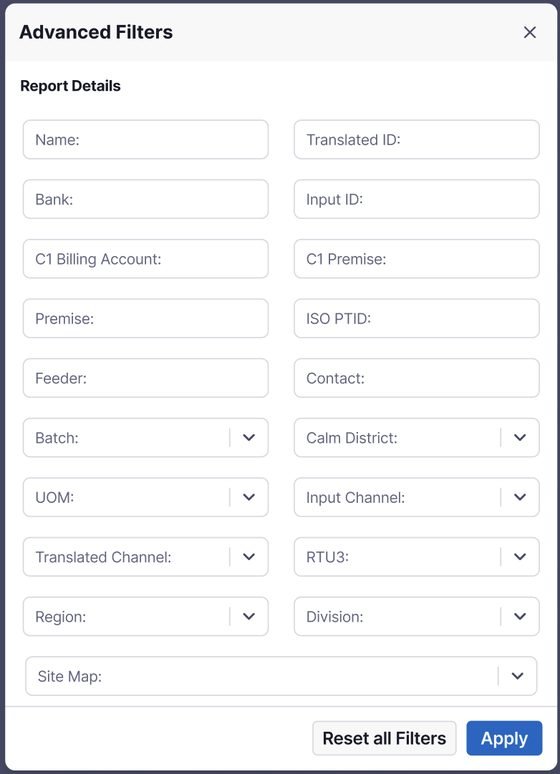
In LENS, finding a customer starts from one field that accepts a name, Trans ID or bill account, with its label saying exactly what it takes. For the searches that need more, Advanced opens a panel of 19 filters on the same first screen: the Cust/Point criteria such as Feeder, Bank, RTU3 and Region, plus identifiers that ERS kept on other screens, like C1 Billing Account and Premise. Users no longer have to travel through the app to find the right filter.
ERS · Cust/Point, All Points tab
LENS · Energy Report filter bar

06 — Design principles
Intuitive, modern, and built to save time
Intuitive
Fields say what they accept, and the next step is always the one blue button. Nobody needs to know that a billing account goes in “Input Id”.
Modern
A clean, consistent interface built on one design system replaces a 1990s Windows 98 application of drag-and-drop panels and nested windows.
Saves time
Search, filters, run and export live on one screen, with clear loading states instead of hour-long jobs and repeated trips for every 7 customers.
07 — The flow
The Energy Report, from Home to a single customer
The MVP centers on one flow: look up energy billing for a list of customers, drill into one and export it.
Motion graphic · 28-second loop · filters, loading states, the Energy Report flow and CSV export, built from LENS components
- Step 1HomeLaunch cards group every report by area.
- Step 2Find customersPick a saved control list or search by name, Trans ID or bill account.
- Step 3SelectCheck the accounts to include. Counters confirm the selection.
- Step 4Run reportInterval energy and demand, with totals, for the chosen dates.
- Step 5Customer detailUsage, average, peak demand, details and graphs for one account.
- Step 6ExportOne click on the download arrow saves the report as a CSV.
08 — The design system
The artifacts behind every screen
The LENS design system holds 56 tokens, 16 components and 25 icons, each with a usage note, and it is already used in two other applications, GridMD and L-Tip. Below are the foundations and a sample of the components, rendered from the system's own CSS.
Color tokens
Brand & text
#3463bf#354bd1#121187#1a1a27#474964#61637e#687389#9f9fa4Surfaces & lines
#ffffff#f8f8f9#dff0f9#f1f9fd#b8dff2#d8d9e0#dddee4#e2e3e8Area tones
#fcf3cc#f2ab40#dff5dc#4ca154#f9e3e2#89251aHighlight
#fefbda#ddb63d#8f571c#183fadType scale · Inter
stat-value
24px / 800heading
20px / 700dialog-title
17px / 600card-title
15px / 700detail-label
14px / 600detail-value
14px / 400section-title
13px / 600body
13px / 400form-button
13px / 500row-link
13px / 500table-cell
12px / 400table-header
12px / 500link
12px / 600dialog-eyebrow
12px / 600stat-label
12px / 500stat-caption
11px / 400label
10px / 600toolbar-button
10px / 600eyebrow
10px / 600caption
10px / 400Spacing & radius
space-14pxspace-28pxspace-312pxspace-416pxspace-520pxspace-624pxspace-1040px3px
4px
6px
pill
Icons
 adjustments
 app-admin
 bolt-peak
 bolt
bolt calendarcard-app-admincard-energycard-operationcard-system-admin
 chevron-down
 chevron-left
 chevron-right
 close
close download
 faq-user-hexagon
 help-circle
 home
home menu
menu operation
 reportssearch
 sort-ascending
 sort-lines
 system-admin
 trending-up
Components
Total UsageAverage DailyPeak Demand09 — Sample page
Try the Energy Report flow
This is a working sample built only from LENS components. Open the Energy Report, choose a control list, run the report, then click a customer to see the detail view.
LENS is a desktop application. On a phone, this demo shows a scaled-down preview. Open this page on a laptop or desktop to try it.
Screens recreated with sample data. No real customer or billing data is shown.
10 — Impact
Less time to find the data, and to get it out
From 23 screens to 2. The path from login to an exported energy report drops from 23 ERS screens and four waits, including an hour-long report job, to Home and a single report screen where people search, select, run and export.
From 5 runs to 1. ERS capped each report at 7 customers, so 35 customers meant five trips through the whole journey. In LENS a specialist selects all 35 and runs one report.
9 out of 10 from the people who will use it. In 9 test sessions over 3 weeks with SMEs and users from other departments, every user rated LENS 9 out of 10. They are saving the 10 for when they have used it on the job. When I presented the app to 15 stakeholders in a stand-up review, none raised an objection, and they were excited to start using it in the office.
The design system is spreading. The system I built for LENS has been adopted by two other applications, GridMD and L-Tip. LENS serves the electric side of the business, and after a meeting with 3 stakeholders from the gas side, they see a need for the tool too, so more groups will use it and have access in future designs.
The MVP is built on the system. The Energy Report flow uses the shared tokens and components from end to end, so engineering builds from one source instead of one-off screens.
The next areas are already mapped. Home's launch cards and navigation already hold Operation, App Admin and System Admin, each with its own tone, ready for the reports that follow the MVP.
11 — Reflection
What I learned
Users save their 10 for real work. A 9 in a test session is a strong signal, but the last point is earned on the job. After launch, I want to measure the time to an exported report and the number of runs per customer list, so the improvement is proven in daily use.
Map the whole journey before designing. Walking all 23 ERS screens showed that the biggest costs were the waits and the 7-customer cap, not any single screen.
That’s all four